
What's Changing
Google Spaces (the group collaboration feature in Google Chat) becomes Teams Channels in Microsoft Teams. Channels are dedicated spaces for ongoing team conversations organized by topic, project, or department.
What Stays the Same
- Group conversations - talk with multiple people about shared topics
- File sharing - share and collaborate on files within the group
- Persistent history - all messages and files are saved and searchable
- @mentions - tag people to get their attention
Migration Heads-Up
- Your Google Chat Spaces do not automatically become Teams channels. Your department's Teams and channels have been created by IT — you'll find them ready when you sign in. If you had important files in a Google Chat Space, save them before the move (see the Teams Essentials module for details).
- Google Shared Drive files from your department's Shared Drives are being migrated to SharePoint document libraries, which are connected to your Teams channels. Your team files will be in the Files tab of each channel.
Your Team Is Already Set Up For You
You do not need to create a Team. Blue Ant Media IT has already built a Team for each department. When you sign into Teams after migration, you will already be a member of your department's Team — it will appear in your Teams list on the left sidebar.
Note for reviewers: Division names are placeholders pending IT/leadership confirmation. The new structure may be 4 divisions (Global Channels & Streaming / Canadian Media / Studios & Rights / Shared Services) — see the SharePoint module for the same note.
Your Team is set up with the following default channels:
- General - team-wide announcements and conversations
- Production - production team discussions and updates
- Content - content department coordination
- Accounting/Finance - financial discussions (private channel)
- Announcements - important notices
Your IT team may add or adjust channels specific to your department's structure. The important thing: you do not start conversations from scratch. Go to the channel that matches the topic, and post there. This keeps everything organized and searchable for the whole team.
Standard Channels vs. Private Channels
Standard Channels are visible to every member of your Team. Use these for work discussions the whole department should see - scheduling, announcements, general updates.
Private Channels are visible only to the members specifically added to them. Your department's Accounting or Finance channel is an example - only those staff members can see what's posted or shared there.
You will see a small lock icon next to private channels in your sidebar.
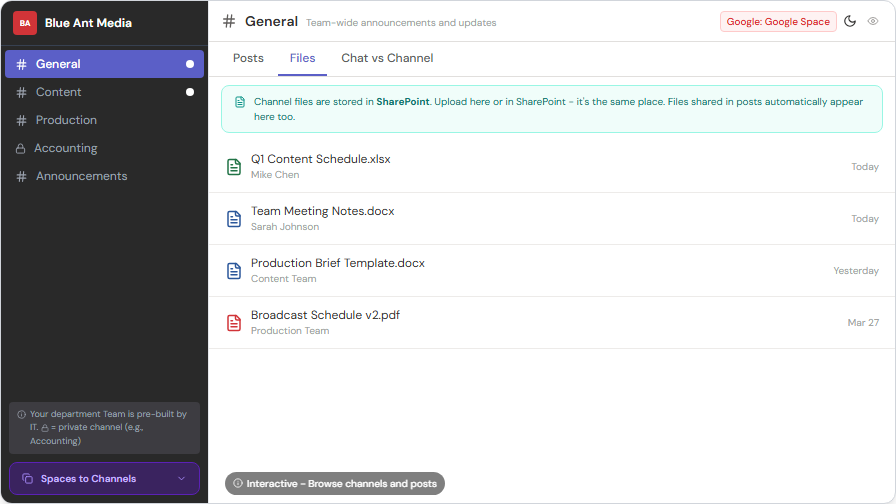
Files in channels are stored in SharePoint. This means they stay in one place, everyone with access can find them, and nothing gets lost if someone leaves. Think of it as a shared hard drive that's always organized by channel.
Your Team as a One-Stop Shop
Your Team is a one-stop shop for everything. The only thing you can't do in Teams is compose and read your email - everything else is there. You can get your files, you can chat with a colleague, you can message someone in Production, you can create a meeting, all from one place.
Your department's shared Google Sheets, spreadsheets, and team files can all be moved into the appropriate Teams channel. From there, your whole team can open, edit, and collaborate on them in real time - the same way you used Google Sheets, but with the added benefit that everything lives in one organized place.
Working in Channels
Posting a Message
- Click on the channel name to open it
- Click Start a post (or click in the message box)
- Type your message and press Enter or click Send
Starting a Threaded Conversation
- Click Reply under an existing message
- Your reply stays connected to the original message (like email threads)
- This keeps conversations organized - much better than one giant chat
Sharing Files in a Channel
- Click the Files tab at the top of the channel
- Click Upload or drag and drop files
- Files shared here are stored in SharePoint and everyone in the channel can access them
Here's what the Files tab looks like in a channel — notice the organized folder structure:
Creating New Files in a Channel
Click the + New button in the Files tab to see your options — you can create new files (Word, Excel, PowerPoint), new folders, OneNote sections, and more — all directly within the channel.
Changing Your View
The Files tab offers different ways to view your files. Click All Documents to switch between views:
- List — detailed view with file names, dates, and modified by
- Compact list — more files visible at once
- Tiles — visual preview thumbnails
File Properties and Details
Right-click any file or click the … menu to see file properties — you'll see access info, the modified date, and sharing details.
Exporting and Opening in SharePoint
Need more control? The Files tab toolbar includes options to:
- Export to Excel — useful for tracking documents in a spreadsheet
- Open in SharePoint — opens the full SharePoint document library for advanced features like creating views, setting alerts, and managing permissions
@Mentioning Someone
- Type @ followed by the person's name to notify them specifically
- Type @channel to notify everyone in the channel
- Type @team to notify the entire team
Google Spaces to Teams Channels - Quick Comparison
| Google Spaces | Teams Channels |
|---|---|
| Create a Space | Create a Channel (within a Team) |
| Post a message | Start a post |
| Reply in thread | Reply under a message |
| Share a file in Space | Upload to Files tab |
| @mention someone | @mention someone |
When to Use Chat vs. Channels
| Use Chat when… | Use a Channel when… |
|---|---|
| Quick, private conversation | Ongoing team discussion |
| 1-on-1 or small group | Whole department needs to see |
| Time-sensitive question | Conversation others might reference later |
| Personal matters | Work topics that should be searchable |
Requesting a New Channel
If your team needs a new channel (e.g., a "Show Logistics" channel for Studios production, or a "Programming" channel for Love Nature):
- Ask your manager or IT - they can create channels within your Team
- Keep channel names short and descriptive - "Show-Logistics" not "Production Department Show Logistics Tracking and Status Updates"
- Don't create a channel for every topic - start simple and add more only when there's a clear need
Finding Old Files and Messages
Everything posted in a channel is searchable forever:
- Use the search bar at the top of Teams
- Type a keyword, then filter by Channel, Person, or Date
- Channel messages and files are indexed - you can find a file shared 6 months ago just by searching its name
- Check the Files tab in any channel to see all files shared there, organized by date
Pinning Important Messages
Keep critical information visible for the whole team:
- Right-click any message in a channel
- Select Pin
- The message appears at the top of the channel for everyone
- Great for: SOPs, weekly schedules, important links, policy reminders
Only channel owners can unpin messages, so pinned content stays put.
Channel Notification Settings
If a channel generates too many notifications:
- Click the … next to the channel name
- Select Channel notifications
- Choose "Only show in activity feed when @mentioned"
- You'll still see posts when you visit the channel, but you won't be interrupted by every message
You can set different notification levels for different channels - full alerts for Production, mentions-only for General.
Private Channel Considerations
- Files in private channels are stored in a separate SharePoint site - only private channel members can see them
- Good for: HR documents, financial data, management discussions
- If a member is removed from a private channel, they lose access to all files and messages in it
- You can tell a channel is private by the lock icon next to its name
Channel Files Are SharePoint
Here's something important to understand: the Files tab in any Teams channel IS SharePoint. When you upload a file to a channel, it's stored in a SharePoint document library behind the scenes.
This means:
- Files survive even if someone leaves the team
- You can open the full SharePoint experience by clicking Open in SharePoint in the Files tab toolbar
- SharePoint features like version history, check-out, and detailed permissions all apply to channel files
- Files in standard channels are in the team's main SharePoint site
- Files in private channels are in a separate SharePoint site (only private channel members can access them)
If you work a lot with channel files, visit the SharePoint module to learn about the advanced features available to you.
Tips
- Use channels for visibility - if the whole production team needs to know about a schedule change, post it in the Production channel, not a private chat
- Pin important messages - right-click a message and select "Pin" so your team can find critical info easily
- The Files tab is powerful - every channel has one, and it's backed by SharePoint. Great for shared templates, forms, and documents your team uses regularly
- Reply in threads to keep conversations organized - don't start a new post to respond to an existing discussion
- @mention wisely - @channel notifies everyone, @person notifies one person. Use @channel sparingly
Quick Reference Downloads
- Teams Basics Quick Reference Card
- Teams Web Guide
- Teams Quick Start Guide
- File Sharing & Collaboration Guide
Need Help?
- Ask your manager which Teams and channels you should be in
- Contact your regional IT support team (the Contact page lists the right email for your office)