
What's Changing
You're getting a new sign-in process for Microsoft 365. Setup happens in two steps: before the migration you'll set up your account and Multi-Factor Authentication (MFA) using a temporary sign-in name, and after the migration you'll sign in with your normal work email address.
MFA means that even if someone guesses your password, they still can't get into your account without a second check on your phone or email. It's like having a deadbolt AND a regular lock on your door.
Migration Heads-Up
- MFA is mandatory for all Blue Ant Media staff. This is not optional — your account will require MFA from day one on Microsoft 365. If you used Google's 2-Step Verification, you'll need to set up Microsoft's MFA separately (it's a different system).
- Set up early — by Friday, July 10. Completing your password and MFA before the migration weekend means you can sign in smoothly on day one.
- Older apps that don't support modern sign-in (legacy authentication) are blocked. If you use a very old email app or third-party tool that can't handle MFA, it won't connect. Contact IT for alternatives.
- Export your Chrome saved passwords before migration — your Google-synced passwords won't be accessible once your Google Workspace account is deactivated. See the instructions below.
What Stays the Same
- Your email address - after the migration you'll sign in with your normal work email
- The concept - you still sign in with an account and password, now with MFA added
- One account for everything - your Microsoft 365 sign-in works for Outlook, Teams, OneDrive, SharePoint, and all other Microsoft apps
Your First Sign-In
Setting up your account happens in two phases.
Phase 1 — Before the migration (complete by Friday, July 10)
Get set up early so you're ready on day one. IT will give you:
- A temporary sign-in name ending in .onmicrosoft.com — this is only for setup, it is not your email address
- A temporary password
Then:
- Go to myaccount.microsoft.com
- Sign in with your temporary .onmicrosoft.com name and temporary password
- When prompted, create your own permanent password
- At least 8 characters
- Use a mix of letters, numbers, and symbols
- Don't reuse a password from another account
- Set up MFA — see the next section. Set up two methods so you always have a backup.
- Don't set up the Outlook or Teams apps yet. Wait until after the migration — for now this is account setup only.
Don't save the temporary .onmicrosoft.com sign-in in a password manager — you'll only use it once.
Phase 2 — After the migration (from Saturday, July 18)
Once the migration weekend is complete, switch to your real account:
- Go to office.com
- Sign in with your work email address — for most people, your @blueantmedia.com address — and the same permanent password you set in Phase 1
- Enter the number shown on your screen into the Microsoft Authenticator app, and you're in
On your first day back, use Microsoft 365 in your web browser. You can set up the Outlook and Teams desktop apps afterwards.
Setting Up MFA
When you set up your account in Phase 1, you'll be prompted to set up MFA. Set up two methods so you're never locked out.
Method 1 — Microsoft Authenticator app (recommended)
- Download the Microsoft Authenticator app on your phone (App Store or Google Play)
- On the computer screen, choose to set up the Authenticator app
- Scan the QR code shown on screen with the app
- A number appears on your screen — open the Authenticator app, enter it, and tap Yes
Method 2 — Email one-time passcode (your backup)
Add a personal or alternate email address as a backup. If you can't use the Authenticator app, Microsoft emails you a one-time passcode to enter instead.
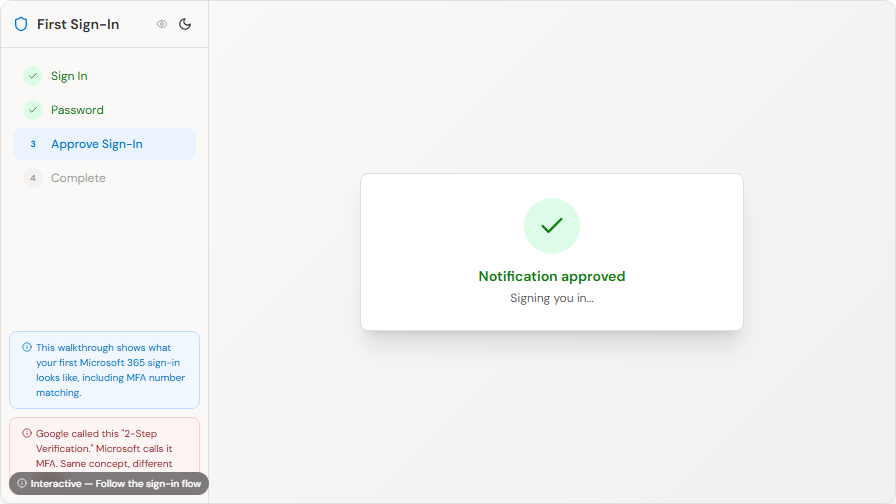
When your setup is confirmed, you'll see a green checkmark:
How MFA Works Day-to-Day
After setting up MFA, here's what your sign-in looks like:
- Enter your email and password as usual
- A number appears on your computer screen
- Your phone gets a notification from Microsoft Authenticator showing "Enter the number shown to sign in"
- Enter the matching number on your phone and tap Yes
- You're in!
This is called number matching — Microsoft shows you a two-digit number on screen, and you enter it in the Authenticator app on your phone to confirm. This prevents accidental approvals and is more secure than just tapping "Approve."
You won't be asked every single time - Microsoft remembers your device for a period so you don't have to approve repeatedly on the same computer.
MFA Methods
Blue Ant Media uses two MFA methods:
| Method | How It Works |
|---|---|
| Authenticator App (recommended) | Enter the number shown on screen into the app on your phone |
| Email one-time passcode (backup) | Microsoft emails you a short code to enter |
If you ever see the sign-in prompt and can't use the Authenticator app, look for the "I can't use my Microsoft Authenticator app right now" link below the prompt to switch to your email one-time passcode.
Troubleshooting
I forgot my password
- Contact your regional IT support team — they can reset it for you
I got a new phone
- Contact your IT contact to reset your MFA registration
- Then set up the Authenticator app again on your new phone
I'm not getting the MFA notification
- Make sure you have internet connection on your phone
- Open the Authenticator app manually - the notification might be there
- Use your email one-time passcode as a backup
I accidentally denied the MFA prompt
- Just sign in again - you'll get a new prompt
I'm locked out completely
- Contact your regional IT support team — they can issue a Temporary Access Pass to get you back in
Before or Just After Migration: Back Up Your Chrome Bookmarks and Passwords
After the migration, you will still be able to log into Chrome with your old Google Workspace account for a short period. During that window:
- Open Chrome and make sure you are signed in with your work Google account
- Go to Settings > You and Google > Sync and make sure Sync is turned on
- To export passwords: Settings > Autofill > Password Manager > Export passwords
- To export bookmarks: Bookmarks > Bookmark Manager > three dots > Export bookmarks
Do this as soon as possible - the access window will close once the migration period ends.
Shared and Kiosk Computers
If you use a shared computer at the front desk or reception:
- Always sign out when you're done - click your profile picture (top right) > Sign out
- Don't check "Stay signed in" on shared computers
- MFA protects you even if you forget to sign out - nobody can approve the MFA prompt on your phone except you
- Lock the screen if you step away temporarily - press Windows + L
How "Remember This Device" Works
After MFA approval, Microsoft may not ask again on the same device for a while:
- Typical duration: 14-90 days depending on your company's IT policy
- Applies per device - your work PC, personal phone, and tablet are remembered separately
- Signing out resets it - you'll need MFA again next time you sign in
- New browser/incognito always asks for MFA
Setting Up a Backup MFA Method
Don't rely on just the Authenticator app - set up your email one-time passcode backup so you can still get in if your phone dies or you lose it:
- Go to mysignins.microsoft.com > Security info
- Click Add sign-in method
- Choose Email and enter a personal or alternate email address
- Now if the Authenticator app isn't working, Microsoft can email you a one-time passcode instead
If You Get an Unexpected MFA Prompt
If your phone shows an MFA approval request and you didn't just try to sign in:
- Tap Deny immediately - someone may have your password
- Change your password right away, and contact IT if you're not sure how
- Notify IT - they can check for unauthorized access attempts
- This is the whole point of MFA - even with your password, they can't get in without your second check
Tips
- Set up MFA right away when prompted - don't skip it or you'll be locked out
- Set up both methods - the Authenticator app plus the email one-time passcode backup
- Keep the Authenticator app on your phone - it's small and uses barely any battery
- If you get a random MFA prompt you didn't expect, tap Deny - it might be someone trying to use your password
- Use the Authenticator app's password vault or Edge's built-in password manager instead of writing passwords on paper
- Back up your Chrome bookmarks and passwords before or immediately after migration
Quick Reference Downloads
Need Help?
- Contact your regional IT support team (the Contact page lists the right email for your office)
- If you're locked out, they can issue a Temporary Access Pass to get you back in