
What's Changing
Your email is moving from Gmail to Microsoft Outlook. Think of it as upgrading to a new car - the steering wheel is in the same place, the road is the same, but the dashboard looks a bit different.
Your new email address is firstname.lastname@blueantmedia.com. Your old address — including any .tv alias and any other domain you previously used (e.g., mediapulse, cottagelife, homeshow, or others) — is aliased to your new mailbox, so no email goes missing. Your contacts come with you. The main change is the app you use to read and send email.
Note: If you have specific concerns about how your old address routes (especially for SSO, HR systems, or external partners that have your old email on file), check with IT before the switch to Microsoft 365. The migration team is tracking which addresses each person needs preserved.
What Stays the Same
- Your contacts - they transfer automatically
- Your email history - past emails are migrated over
- How email works - compose, send, reply, forward - all the same concepts
Migration Heads-Up
A few things from Gmail will not transfer automatically — plan for these:
- Gmail filters (rules): Your Gmail filters will not migrate to Outlook. If you rely on filters to sort emails into labels or auto-forward, you'll need to recreate them as Outlook Rules after migration. Go to Settings > Mail > Rules to set them up.
- Gmail labels: Your labels become folders in Outlook. However, Gmail's nested labels (like
Projects/Show-A/Season-2) will flatten — you may see them as separate folders rather than a nested tree. Reorganize your folders after migration if needed. - Forwarding rules: If you have Gmail forwarding rules set up, they may stop working once you're on Outlook. Check with IT to re-establish any forwarding you need.
None of these affect your actual emails — all your messages transfer over. It's just the organizational rules you'll need to rebuild.
Getting Started with Outlook
Opening Outlook on Your Computer
- Click the Outlook icon on your desktop or taskbar
- If you don't see it, search for "Outlook" in the Windows Start menu
- Sign in with your work email and the new password you were given
Opening Outlook on the Web
- Go to outlook.office.com in your browser
- Sign in with your work email address
- You'll see your inbox right away - it works a lot like Gmail's web interface
Mac Users: The new Outlook for Mac looks and works almost identically to the web version, so the screenshots below will feel familiar. Keyboard shortcuts use Cmd instead of Ctrl (e.g., Cmd + N for a new email), and a few ribbon items sit in different spots than on Windows. If you're ever unsure, the Outlook Mail Cheat Sheet - Mac at the bottom of this page has you covered.
The Outlook Layout
Here's what Outlook on the web looks like — your inbox with folders on the left, email list in the middle, and a reading pane on the right:
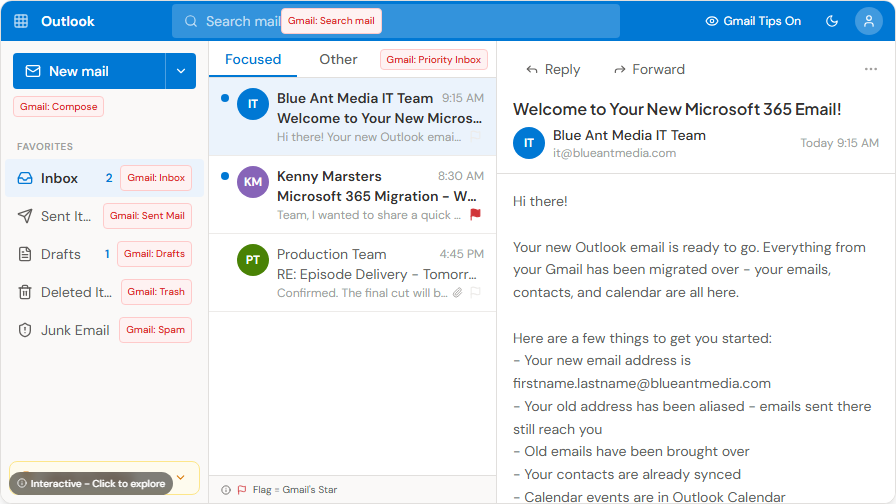
Here's what you'll notice right away:
- Inbox is front and center, just like Gmail
- Folders are on the left (instead of Gmail's "Labels") — you'll see Favorites at the top (Inbox, Sent, Drafts) and the full folder tree below
- The reading pane shows your selected email on the right — if no email is selected, you'll see an envelope icon with "Select an item to read"
- New Email button is at the top left - same as Gmail's "Compose"
If you're using the desktop version of Outlook, the layout is similar but includes a ribbon toolbar across the top with quick access to Reply, Forward, Move, and other common actions.
New Mail Options
When you click New Email, you'll notice a dropdown arrow next to it. Click the arrow to see additional options:
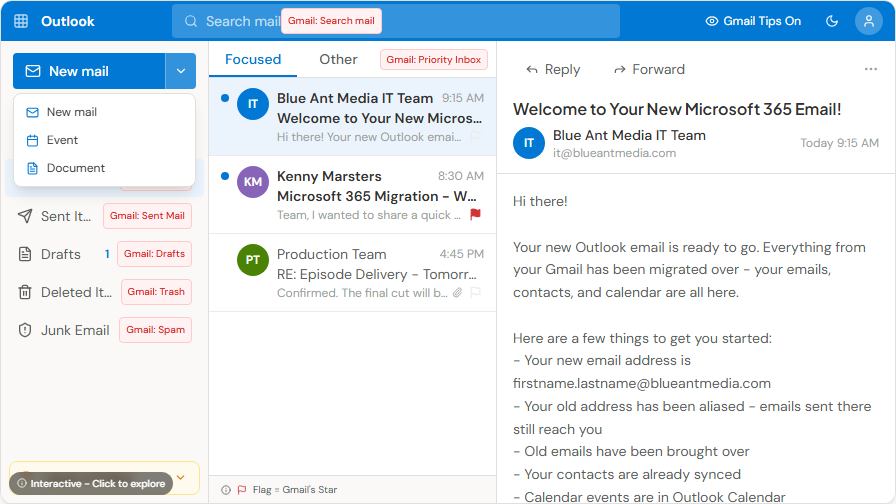
- New mail — compose a regular email
- Mail from template — use a saved email template
- Event — create a calendar event directly
- Signature mail — send a formatted email with your signature
You can also start a new email with the keyboard shortcut Ctrl + N.
Gmail to Outlook - Quick Comparison
| What you did in Gmail | How to do it in Outlook |
|---|---|
| Click Compose | Click New Email |
| Star an email | Click the Flag icon |
| Use Labels | Use Folders (drag and drop) |
| Archive | Click Archive or press E |
| Search mail | Click the Search bar at the top |
| Add an attachment | Click the paperclip icon |
Understanding Focused Inbox
Outlook has a feature called Focused Inbox that automatically sorts your email into two tabs:
- Focused - emails Outlook thinks are most important (messages from people you interact with regularly, direct messages to you)
- Other - newsletters, automated notifications, and less urgent items
This is similar to Gmail's Priority Inbox. It works well once it learns your habits, but some people prefer to see everything in one list. To turn it off:
- Click View in the ribbon
- Click View Settings
- Turn off "Sort messages into Focused and Other"
Setting Up Your Email Signature
Your email signature is how customers and colleagues identify you. Set it up right away:
- Click the Settings gear (top right of Outlook)
- Go to Accounts > Signatures
- Create your signature with your name, title, department, and phone number
- Set it as the default for new emails and replies/forwards
Blue Ant Media Branded Signatures
Blue Ant has three branded signature templates ready to download. Pick the one that matches your division, open it in Word, replace the placeholder text with your details, and paste the formatted block into your Outlook signature settings.
- Blue Ant corporate — main corporate signature with the blue ant wordmark and the Indigenous land acknowledgement
- Blue Ant Studios — for the Studios division; includes Gmail and Outlook setup instructions inside the document
- Atomic Cartoons — for Atomic Cartoons staff; includes the same step-by-step setup
More variants coming: Consumer Shows, Generic, International, and a few other show-specific signatures exist internally. The Communications team is sourcing the latest versions and we'll add them here once we receive them.
Sample Signature Format (corporate template)
Firstname Lastname (pro/nouns) Title Goes Here P: 1-(000)-000-0000 change.me@blueantmedia.com 99 Atlantic Ave, 4th Floor, Toronto ON, M6K 3J8
Blue Ant Media is headquartered on land where creativity has lived for thousands of years. We respectfully acknowledge the many different Indigenous peoples who have been, and continue to be, the custodians of this land.
Your Calendar Lives Here Too
Your Outlook Calendar and your Teams Calendar are the same calendar - they are always in sync. Any meeting booked in Teams shows up in Outlook and vice versa. Click the Calendar icon in the left sidebar of Outlook to see your schedule without leaving the app.
Troubleshooting: Email Not Showing Up?
If you can't find an email you're expecting:
- Check the Other tab - Focused Inbox may have sorted it there
- Check Junk/Spam - look in the Junk Email folder on the left sidebar
- Search for it - use the search bar at the top and type the sender's name or subject
- Ask Copilot - if you have Copilot enabled, ask "Find an email from [sender] about [topic]" and it'll find it across your mailbox
- Give it a moment - after migration, it can take a few hours for all emails to appear
- Check Shared Mailboxes - if it was sent to a shared address (press@, info@), it appears in that mailbox's folder, not your personal inbox
Where Shared Mailboxes Appear
If you have access to shared mailboxes like hr@blueantmedia.com, bamcommunications@, ir@, ap@, or ar@, they appear as separate sections in your left folder panel — below your personal inbox folders. They don't mix into your regular inbox. Click the shared mailbox name to expand it and see its own Inbox, Sent Items, and folders.
Tips
- Shared mailboxes (like hr@, bamcommunications@, accounting@, adops@, and others) work similarly — your IT team will set these up for you
- Calendar invites come right into Outlook too - no more switching between Gmail and Google Calendar
- Teams chat notifications can appear in Outlook, so you won't miss messages from colleagues
- Right-click for options - right-clicking any email, folder, or contact gives you a menu with useful actions (move, flag, categorize, etc.)
- Drag and drop works everywhere - drag emails into folders, drag attachments onto the desktop, drag files into new emails
Personalizing Outlook
You can customize Outlook to look and feel the way you prefer. Click the Settings gear (top right) to access these options.
Dark Mode
Prefer a darker screen? Outlook supports full dark mode:
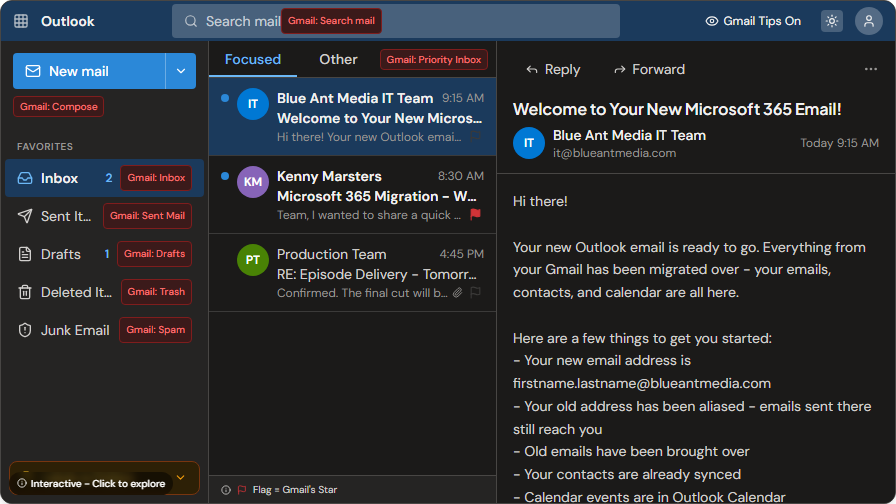
- Click the Settings gear > General > Appearance
- Choose Dark, Light, or Use system settings
- Pick a theme colour (blue or dark blue)
- Toggle Show app names in the navigation bar if you prefer icons with labels
Notifications
Control which notifications interrupt you:
- Settings > General > Notifications
- Toggle notifications for Mail, Calendar, and Documents independently
- Turn off mail notifications during focus time to stay productive
Language and Time Zone
Make sure your dates and times are correct for your office:
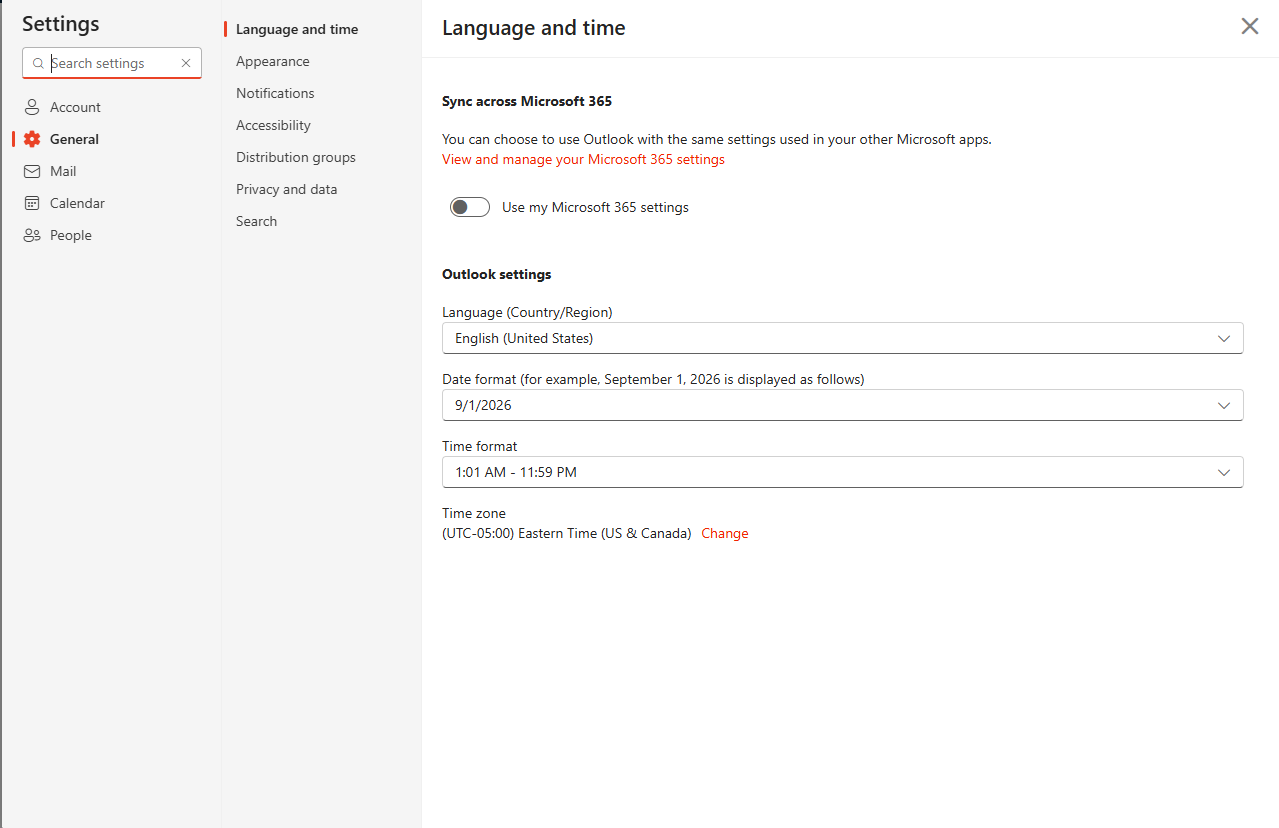
- Settings > General > Language and time
- Set your time zone (Eastern Time for Toronto office)
- Choose your preferred date format and time format
Your Tasks and To Do
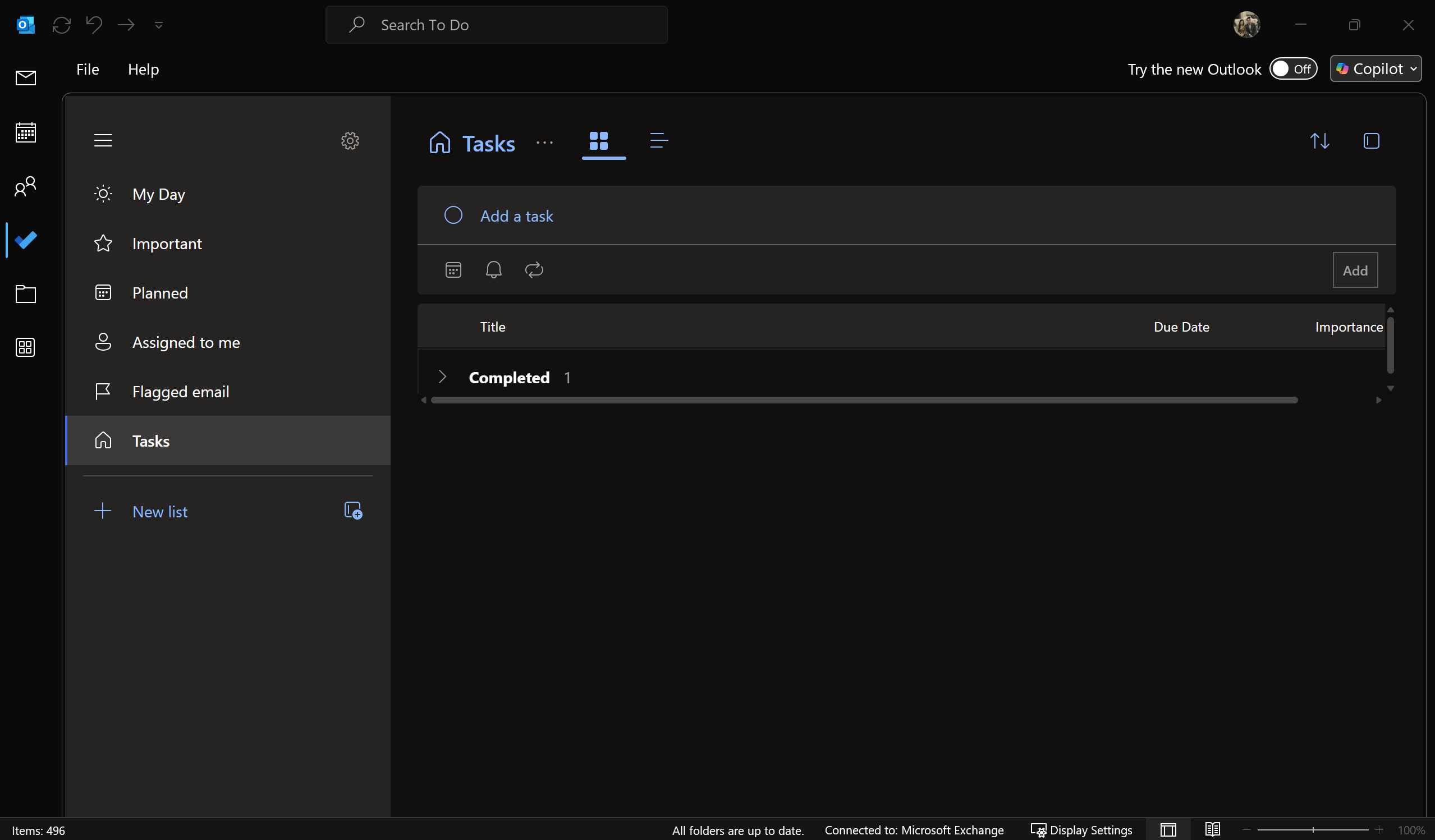
Outlook includes a built-in task manager called Microsoft To Do. You can access it by clicking the checkmark icon in the left sidebar of Outlook.
Quick Overview
- My Day — tasks you want to focus on today
- Important — tasks you've marked as high priority
- Planned — tasks with due dates, organized by when they're due
- Assigned to me — tasks assigned to you by colleagues in Teams or Planner
- Flagged email — any email you flag in Outlook automatically appears here as a task
Creating Tasks from Emails
This is one of the most useful features: flag any email and it becomes a task in your To Do list. Right-click an email > Flag > choose a due date. The email shows up in your Tasks view so you don't forget to follow up.
Google Tasks Equivalent
If you used Google Tasks, Microsoft To Do is the replacement. It integrates deeper — your tasks show up in Outlook, Teams, and the standalone To Do app on your phone.
Keyboard Shortcuts You Already Know
If you used Gmail keyboard shortcuts, many of them work in Outlook too:
- R - Reply
- F - Forward
- E - Archive
- Ctrl + N - New email
- Ctrl + Enter - Send
Quick Reference Downloads
Keep these handy for quick lookups:
- Outlook Basics Quick Reference Card
- Gmail to Outlook Cheat Sheet
- Outlook Web Guide
- Outlook Quick Start Guide
- Outlook Mail Cheat Sheet - Windows
- Outlook Mail Cheat Sheet - Mac
- Outlook Mail Cheat Sheet - Online
Need Help?
If you can't find something or something doesn't look right:
- Check the Quick Start guide on this site
- Browse other modules on this site
- Contact your regional IT support team (the Contact page lists the right email for your office)
See the Contact page for the AI assistant and security incident reporting.