
What's Changing
Your personal files are moving from Google Drive to Microsoft OneDrive. OneDrive is your personal cloud storage - it works very similarly to Google Drive, just with a different name and a fresh interface.
What Stays the Same
- Your files - everything from Google Drive is migrated to OneDrive
- Cloud access - access your files from any device, anywhere
- Sharing - share files and folders with colleagues the same way
- Auto-save - files save automatically, just like in Google Drive
- File types - PDFs, images, documents all work the same way
Migration Heads-Up
A few things to know about your files after migration:
- Google Docs, Sheets, and Slides are automatically converted to Word, Excel, and PowerPoint format. This happens for all 188,000+ Google-native files across Blue Ant Media. Most files convert perfectly, but complex formatting (custom layouts, embedded drawings, advanced Sheets formulas) may shift slightly — review important documents after migration.
- Your Google Drive remains accessible during the migration window — you can still open the original Google version to cross-reference if a converted file looks off. Once you're moved to OneDrive, Google Drive becomes read-only for about one week, giving you time to retrieve anything that wasn't migrated. After that read-only week, the Google environment is shut down for good. IT will share the exact end date in cutover communications.
- Files flagged as "complex" or "needs review" will be listed in IT communications around the migration date — watch your email for the list. If a file you rely on isn't on the list but looks wrong after migration, contact IT.
- Google Drawings: There's no Microsoft equivalent. Your drawings are exported as static images (PNG/PDF). They'll still be viewable, but you won't be able to edit them as drawings anymore.
- Very large files (over 15 GB): These won't sync through the OneDrive desktop app. You can still access them through the browser at onedrive.com.
- Google Meet recordings (over 3,700 across Blue Ant) will appear in your OneDrive in a "Recordings" folder or in Microsoft Stream.
Your personal Google Drive files go to OneDrive. Your team's Google Shared Drive files go to SharePoint (see the SharePoint module).
What OneDrive Looks Like
Here's your OneDrive home page — it shows your recent files, quick access shortcuts, and file filters across the top:
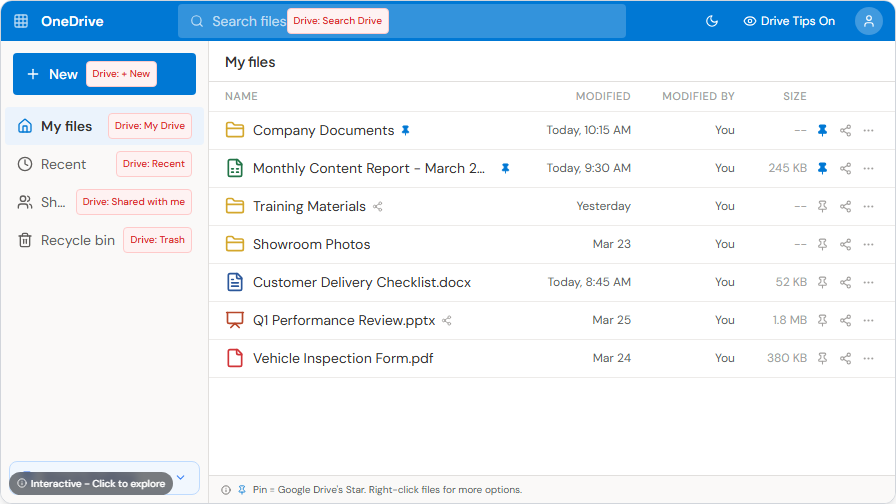
OneDrive also supports a dark theme — you can switch between light and dark mode in your OneDrive settings under Appearance.
Finding Your Files
On Your Computer
- Look for the OneDrive cloud icon in your taskbar (bottom right of your screen)
- Click it to open your OneDrive folder
- Your files are synced locally - you can work on them even without internet
Mac Users: OneDrive syncs to Finder the same way it syncs to File Explorer on Windows. Look for the OneDrive cloud icon in your menu bar (top right of your screen). Files On-Demand works the same way — you'll see cloud icons next to files in Finder showing whether they're stored locally or online-only.
On the Web
- Go to onedrive.com and sign in
- Or click the OneDrive icon from your Microsoft 365 app launcher (the grid of dots at the top left of any Microsoft 365 page)
The app launcher (also called the "waffle menu") is the grid of nine dots at the top-left of any Microsoft 365 page. Click it to find OneDrive and all your other apps.
On Your Phone
- Download the OneDrive app from the App Store or Google Play
- Sign in with your work email
- Access all your files on the go
The mobile app shows sync status for each file — you can see which files are available offline and which are cloud-only. Look for the green checkmark (synced) or cloud icon (online only).
Google Drive to OneDrive - Quick Comparison
| Google Drive | OneDrive |
|---|---|
| My Drive | My Files |
| Shared with me | Shared |
| Starred | Pinned |
| Recent | Recent |
| Trash | Recycle Bin |
Working with Files
Creating New Files
Click + New in OneDrive to create:
- Word document (replaces Google Docs)
- Excel spreadsheet (replaces Google Sheets)
- PowerPoint presentation (replaces Google Slides)
- Folder to organize your files
Sharing a File
Sharing in OneDrive is a two-step process:
Step 1: Right-click the file (or click the three dots) and select Share. You'll see a dialog where you can enter names or email addresses, add a message, and choose sharing options.
Step 2: Click the link settings to control who can access the file and what they can do:
- People in Blue Ant Media — anyone in the company with the link can access it
- Specific people — only the people you name can access it
- Can edit vs Can view — control whether they can make changes
- Set expiration — the link stops working after a date you choose
- Block download — let people view but not save a copy
Choose the right combination for your situation. For internal documents, "People in Blue Ant Media" with "Can edit" is usually fine. For sensitive files, use "Specific people" with "Can view."
Finding Files Quickly
- Use the Search bar at the top to find any file by name or content
- Click Recent to see files you've worked on lately
- Pin important files so they're always at the top
What "Synced Locally" Actually Means
When you sign into OneDrive on your computer, it creates a OneDrive folder in your File Explorer (Windows) or Finder (Mac). Files you save there automatically upload to the cloud. If you edit a file on your phone or the web, the change syncs back to your computer.
This means you can:
- Work on files without opening a browser - just use File Explorer like normal
- Edit files offline (on a plane, in a meeting room with poor signal) - they sync when you reconnect
- Access the same files from any device - your computer, phone, or any web browser
Look for the blue cloud icon in your system tray (bottom-right of your screen). A green checkmark means files are synced. A blue arrow means syncing is in progress.
Version History
Made a mistake? Need an older version of a file? OneDrive keeps a history of every change:
- Right-click the file in OneDrive (or click the three dots)
- Select Version history
- You'll see every saved version with the date and who made the change
- Click any version to preview it, or click Restore to bring it back
This works for Word, Excel, PowerPoint, and most other file types. You cannot lose work in OneDrive - there's always a version to go back to.
Storage and Limits
- Each person gets 1 TB (terabyte) of OneDrive storage - that's roughly 500,000 photos or millions of documents
- Individual files can be up to 250 GB each
- You'll likely never hit the limit, but if you do, your IT team can request more
What Happens If Two People Edit the Same File
If you and a colleague both edit the same file at the same time online, you'll see each other's changes in real-time (colored cursors, just like Google Docs).
If you both edit it offline and then reconnect, OneDrive creates a copy with your name in the filename (e.g., "Report - John Smith.docx") so nothing is lost. To merge the two versions:
- Open both files side by side — your version and your colleague's renamed copy
- Use Word/Excel's Compare feature — go to Review > Compare in the ribbon to see exactly which lines differ
- Copy the changes you want from the renamed copy into the main file, then Save
- Delete the renamed copy once you're done so the team only sees one version going forward
Or, if you'd rather not merge manually, right-click the file > Version history to roll back to a single earlier version and start fresh from there.
What Happens If Someone Leaves
If an employee leaves Blue Ant Media, IT can transfer their OneDrive files to a manager or another team member. Nothing is lost. This is another reason to keep work files in OneDrive rather than on a local desktop.
Organizing Your Files
Here's a folder structure that works well for staff:
- Projects - individual folders per project or show
- Reports - monthly reports, performance reviews
- Templates - forms and documents you reuse
- Training - notes, reference materials
- Personal - anything that's just for you
Keep shared team files in SharePoint (via Teams channels), not in your personal OneDrive. OneDrive is your space; SharePoint is the team's space.
Tips
- Don't store work documents on your desktop - save them to OneDrive so they're backed up and accessible from any computer
- The OneDrive folder on your computer syncs automatically - save files there and they'll be available everywhere
- Large files like photos and videos work fine in OneDrive
- Right-click is your friend - right-click any file for sharing, version history, moving, and more
- Pin files you use daily so they appear at the top of your file list
Quick Reference Downloads
- OneDrive Basics Quick Reference Card
- OneDrive Web Guide
- OneDrive Quick Start Guide
- File Sharing & Collaboration Guide
Need Help?
If you can't find a file or need help:
- Check the Recycle Bin - accidentally deleted files stay there for 93 days
- Use Search - it searches inside documents too, not just file names
- Contact your regional IT support team (the Contact page lists the right email for your office)