
Quick Start Checklist
Your first day with Microsoft 365. Follow these steps and you'll be up and running in no time.
Sign in and set up MFA
Before the migration, go to myaccount.microsoft.com and sign in with the temporary account from IT, set your own permanent password, and set up MFA (Microsoft Authenticator plus an email one-time passcode backup). After the migration, sign in at office.com with your work email.
Sign-In & MFA Guide→Back up your Chrome bookmarks and passwords
While you still have access, open Chrome, go to Settings > Autofill > Password Manager > Export passwords. For bookmarks: Bookmarks > Bookmark Manager > Export. Do this ASAP - the access window closes after migration.
Sign-In & MFA Guide (Chrome backup section)→Open Outlook and check your email
Open the Outlook app on your computer or go to outlook.office.com. Your emails are waiting for you.
Outlook Guide→Install Outlook and Teams on your phone
Download Microsoft Outlook and Microsoft Teams from the App Store or Google Play.
Mobile Setup Guide→Find your files in OneDrive
Open OneDrive from the taskbar or go to onedrive.com. Your Google Drive files have been migrated here.
OneDrive Guide→Open Teams and say hello
Open Microsoft Teams and send a message to a colleague. Teams is your new home for chat and video calls.
Teams Guide→Check your calendar in Outlook
Click the Calendar icon in Outlook to see your upcoming meetings. They have all been migrated over.
Calendar Guide→Find the App Launcher
Click the 9-dot grid icon (waffle menu) at the top-left of any Microsoft 365 page to see all your apps — Outlook, Teams, OneDrive, Word, Excel, and more.
Office on the Web Guide→Explore the rest of this training site
Browse through the training modules at your own pace. Each one takes about 5 minutes.
All Training Modules→Finding Your Apps: The App Launcher
The App Launcher(the 9-dot “waffle” icon at the top-left of every Microsoft 365 page) is your gateway to all your apps. Click it to find Outlook, Teams, OneDrive, Word, Excel, PowerPoint, SharePoint, and more.
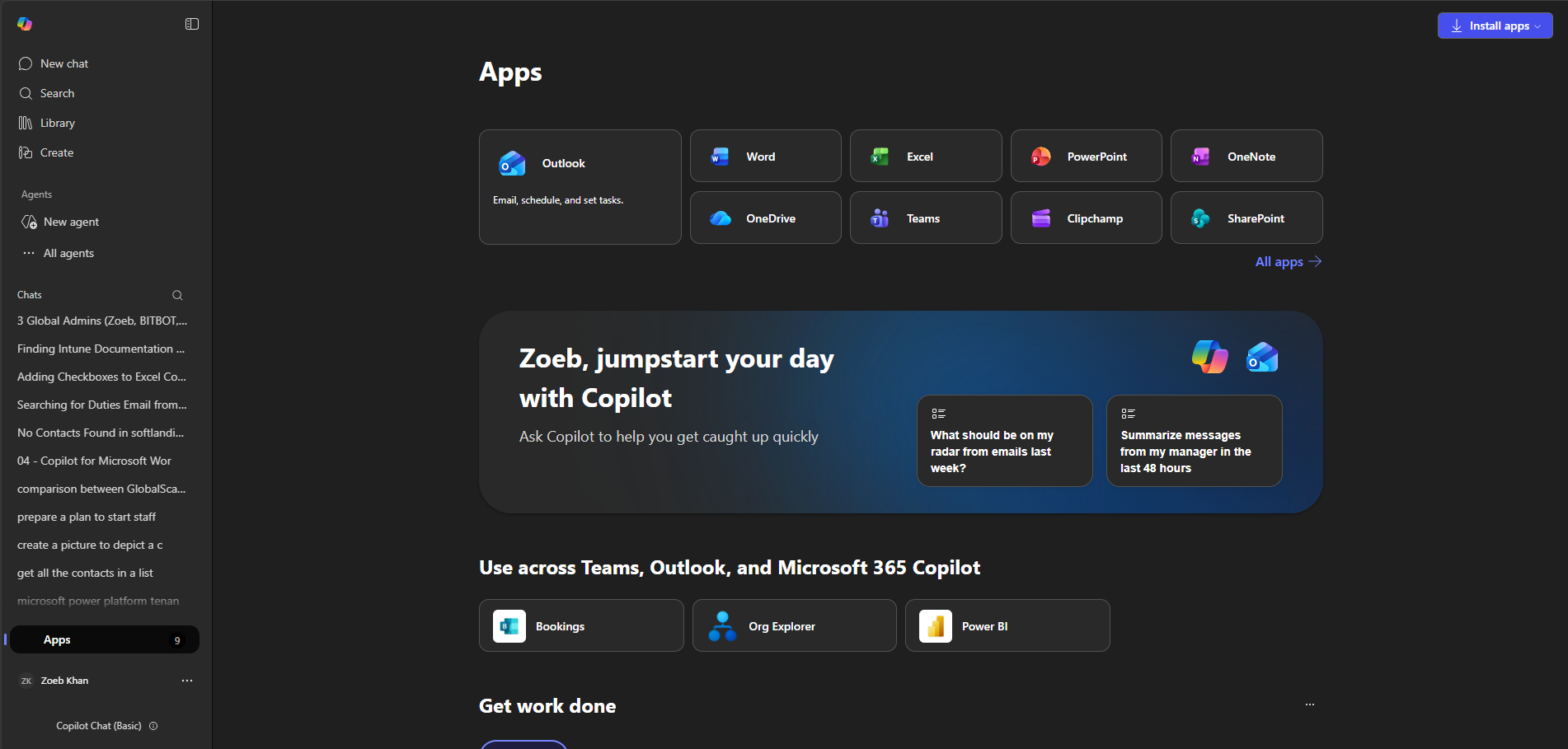
The full Apps page at microsoft365.com
Installing Desktop Apps
Need to install Word, Excel, or PowerPoint on your computer? Click your profile picture in the top-right of any Microsoft 365 page, then select Install apps. The desktop apps give you full offline access and advanced features.
Remember: your training modules are available 24/7. Come back anytime you need a refresher.