
What's Changing
Google Docs, Google Sheets, and Google Slides are being replaced by their Microsoft equivalents - Word, Excel, and PowerPoint. The online versions work right in your browser, just like Google's apps do.
What Stays the Same
- Browser-based editing - no software to install for the web versions
- Real-time collaboration - multiple people can edit at the same time
- Auto-save - your work saves automatically
- Comments and suggestions - leave feedback on documents the same way
- Sharing - share files with a link or by email
Google to Microsoft - Which App Is Which?
| Microsoft | What It's For | |
|---|---|---|
| Google Docs | Microsoft Word | Documents, letters, reports |
| Google Sheets | Microsoft Excel | Spreadsheets, calculations, data |
| Google Slides | Microsoft PowerPoint | Presentations, slideshows |
Migration Heads-Up
Your Google files are being automatically converted to Microsoft format:
- Google Docs → Word, Google Sheets → Excel, Google Slides → PowerPoint. This is happening for over 188,000 files across Blue Ant Media. Most files convert perfectly — formulas, formatting, and content transfer cleanly.
- Complex documents may need a quick review — if you have production schedules with custom layouts, contracts with precise formatting, or Sheets with advanced formulas, open them after migration and check that everything looks right.
- Google Drawings (227 across the company): Converted to static images. You'll still be able to view them, but they won't be editable as drawings in Microsoft 365.
- Google Apps Script (25 projects): These automated scripts don't work in Microsoft 365. If you relied on an Apps Script to automate a Google Sheet or form, contact IT to discuss alternatives (Power Automate can often do the same thing).
Using Office on the Web
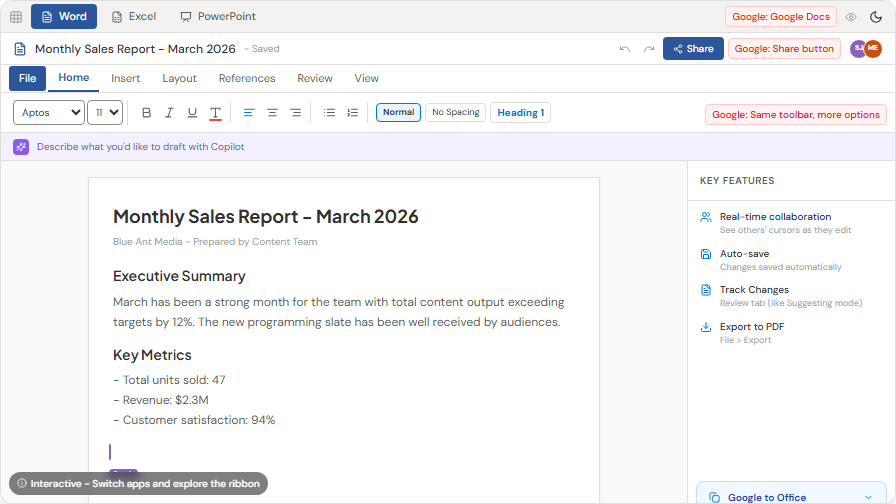
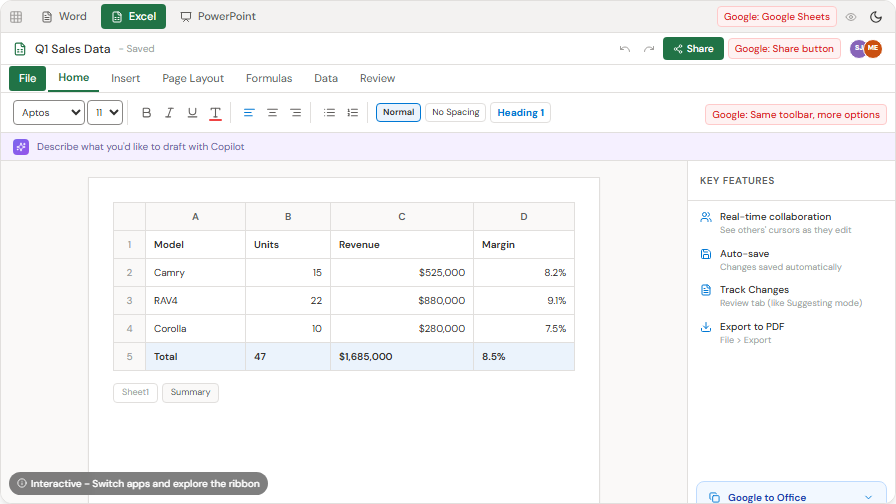
When you open Word, Excel, or PowerPoint from office.com, you'll see a clean home page with your recent documents and templates:
Opening an Existing Document
- Go to office.com and sign in
- You'll see your recent documents on the home page
- Click any document to open it in your browser
- Or find files in OneDrive and click to open
Creating a New Document
- Go to office.com
- Click Word, Excel, or PowerPoint on the left
- Choose Blank document or pick a template
- Start working - it saves automatically
Working Together on a Document
- Click Share in the top right corner
- Add your colleague's name or email
- They can open the document and edit at the same time
- You'll see their cursor and changes in real time (coloured cursors, just like Google Docs)
Key Differences to Know
Word vs. Google Docs
- Word has more formatting options and templates
- The toolbar (ribbon) across the top has tabs: Home, Insert, Layout, etc.
- Track Changes in Word is like "Suggesting" mode in Google Docs
Excel vs. Google Sheets
- Excel is more powerful for complex calculations and large datasets
- Formulas work the same way - SUM, VLOOKUP, IF, etc.
- Charts and graphs have more customization options
PowerPoint vs. Google Slides
- PowerPoint has more design templates and transition effects
- Presenter view works the same way
- Export to PDF is easy - File > Save As > PDF
Web vs Desktop: When to Use Which
| Use the Web version when… | Use the Desktop app when… |
|---|---|
| Quick edits to a document | Complex formatting (mail merge, headers/footers) |
| Collaborating in real-time with colleagues | Advanced Excel formulas or large datasets |
| Working from a shared or borrowed computer | PowerPoint animations and transitions |
| You just need to review or comment | Working offline (no internet) |
For most staff, the web version covers 90% of daily tasks. The desktop apps are already installed on your work computer for the other 10%.
Mac Users: Word, Excel, and PowerPoint desktop apps are available for Mac and work the same as on Windows. You can install them from office.com or the Mac App Store, and the web apps also run great in Safari or Chrome if you'd rather not install anything.
The Ribbon Interface
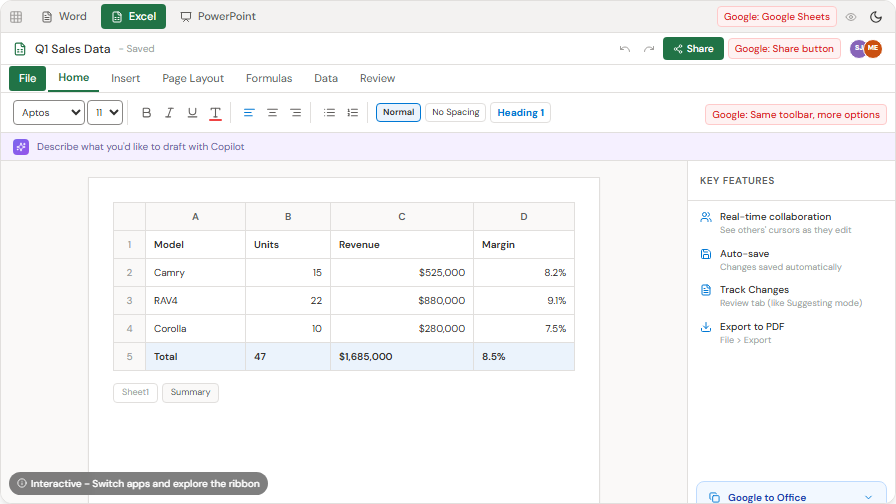
If you've used Google Docs, the biggest visual difference is the Ribbon - the toolbar across the top of the window:
- Home - basic formatting (bold, italic, font size, colours, alignment)
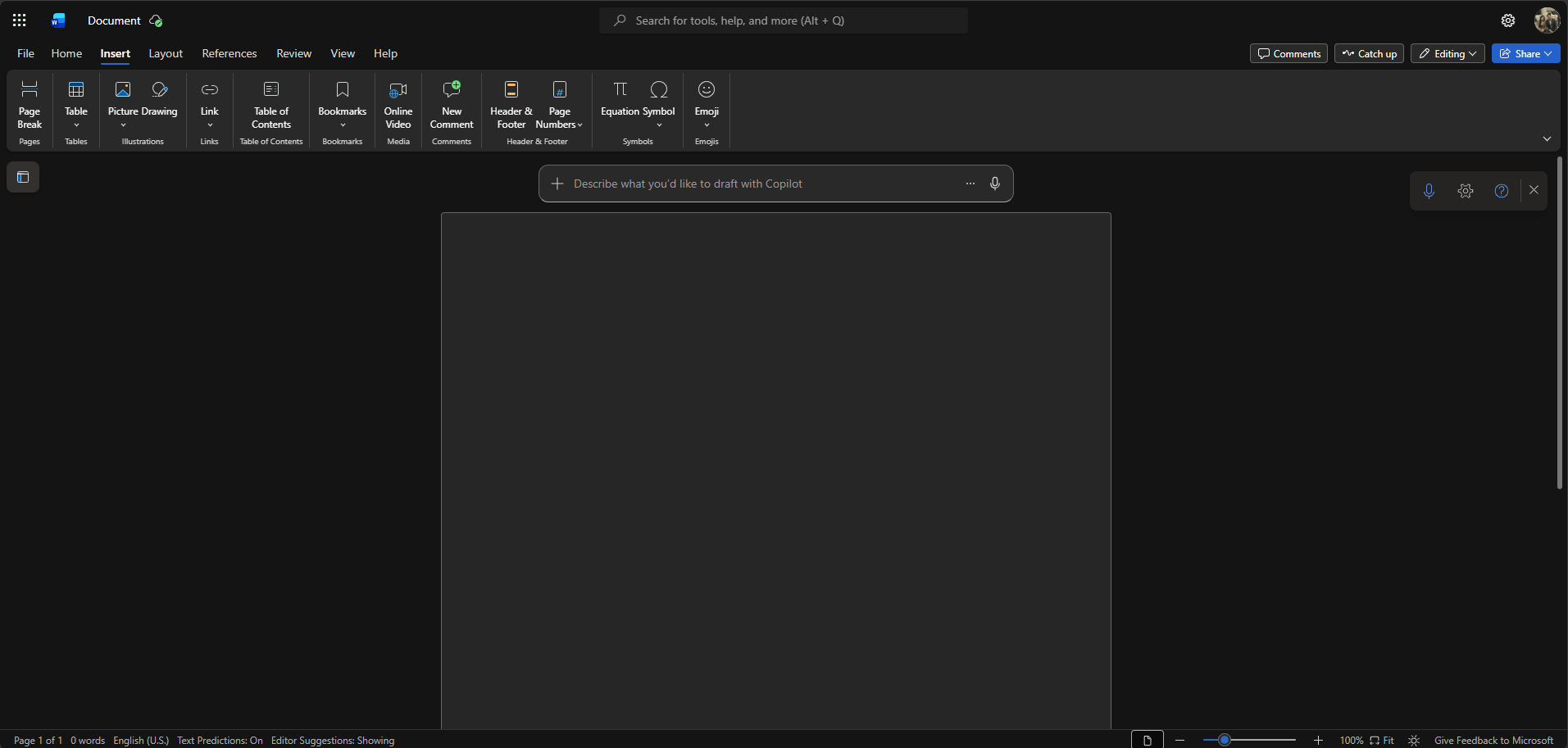
- Insert - add tables, images, links, page breaks
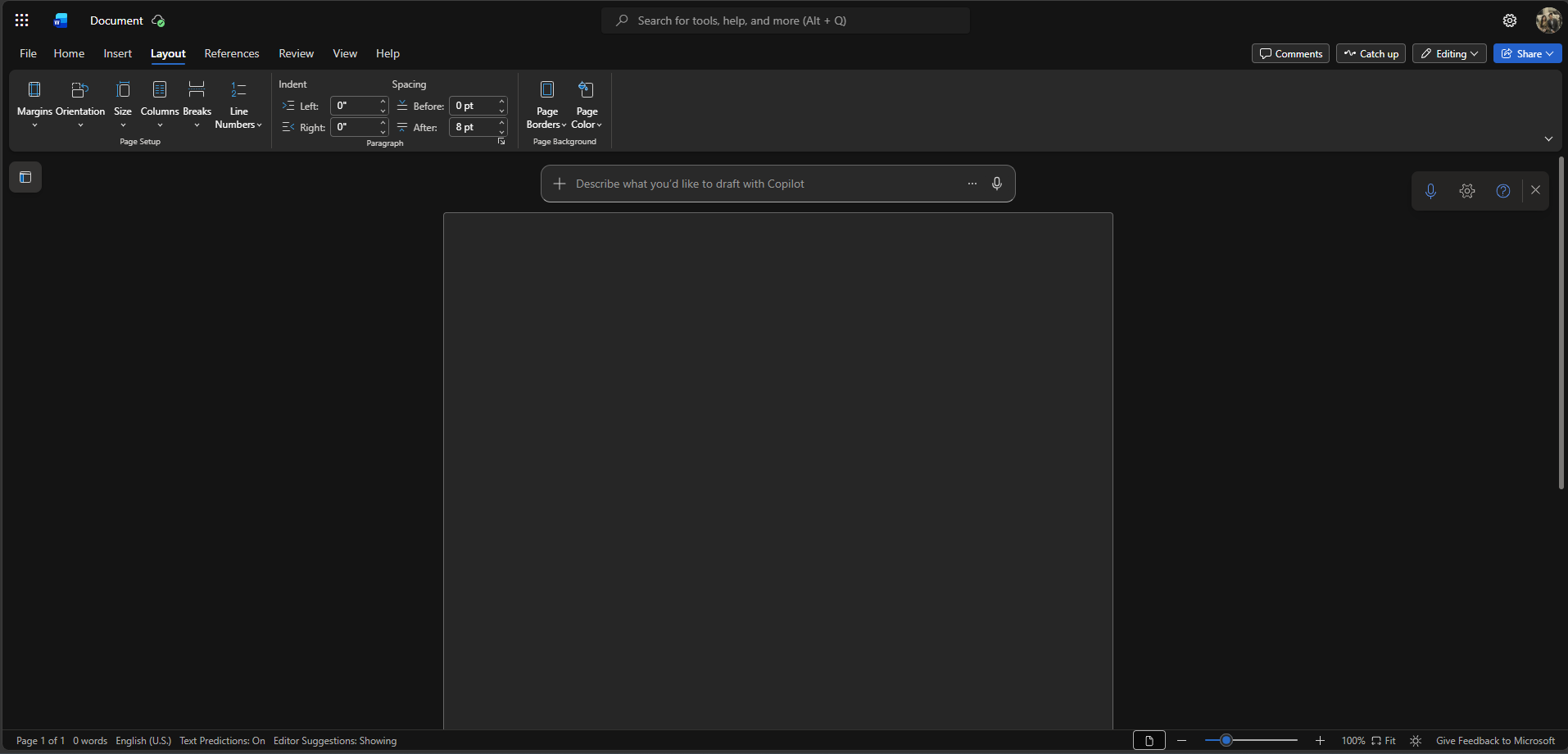
- Layout - margins, page size, columns
- Review - Track Changes, Comments, Spell Check
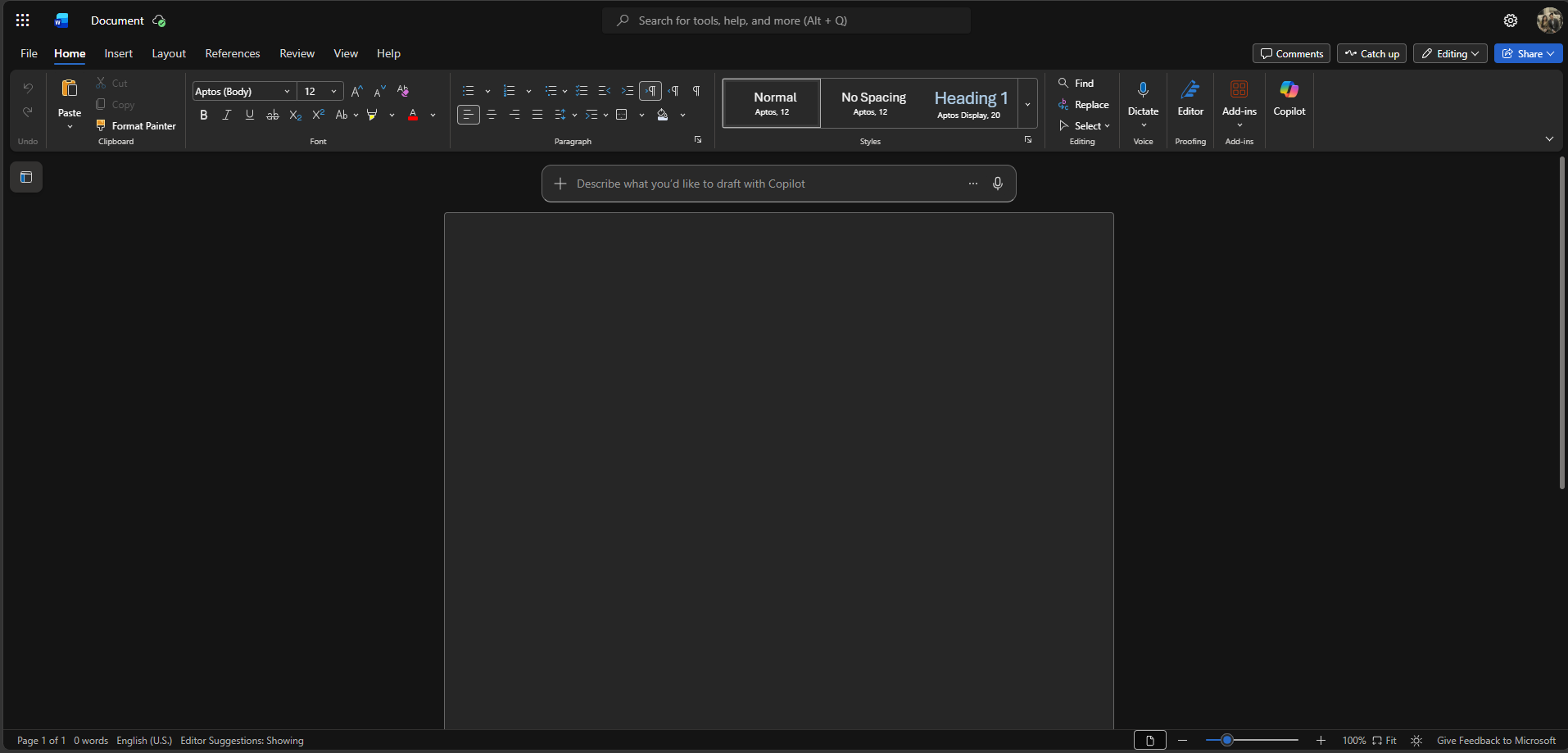
Here's what each tab looks like in Word Online:
Home tab — font controls, paragraph formatting, and styles (Normal, No Spacing, Heading 1):
Insert tab — tables, pictures, shapes, icons, text boxes, headers, footers, links, and comments:
Layout tab — margins, orientation, size, columns, and paragraph spacing:
Don't try to memorize every tab. Just know that if you can't find a button, it's probably on a different tab. The Home tab has everything you need 80% of the time.
You may also notice a Copilot prompt bar below the ribbon that says "Describe what you'd like to draft with Copilot" — this is Microsoft's AI assistant. You can use it to help draft content, but it's entirely optional.
Co-Authoring: Working Together in Real Time
When multiple people edit the same document:
- You'll see coloured cursors showing where each person is typing
- Changes appear in real time - no need to save or refresh
- The document auto-saves every few seconds
- No more emailing documents back and forth or worrying about "who has the latest version"
If two people edit the same paragraph at the exact same time, Office handles the merge automatically. In rare cases where it can't, it highlights the conflict for you to resolve.
Track Changes (Suggesting Mode)
If you used Google Docs' "Suggesting" mode, Track Changes is the equivalent in Word:
- Go to the Review tab
- Click Track Changes to turn it on
- Now every edit you make shows up as a coloured markup
- Colleagues can Accept or Reject each change
This is great for reviewing documents before they go out to partners or management.
Working with PDFs
The File menu (click File in the top-left) gives you access to document management options:
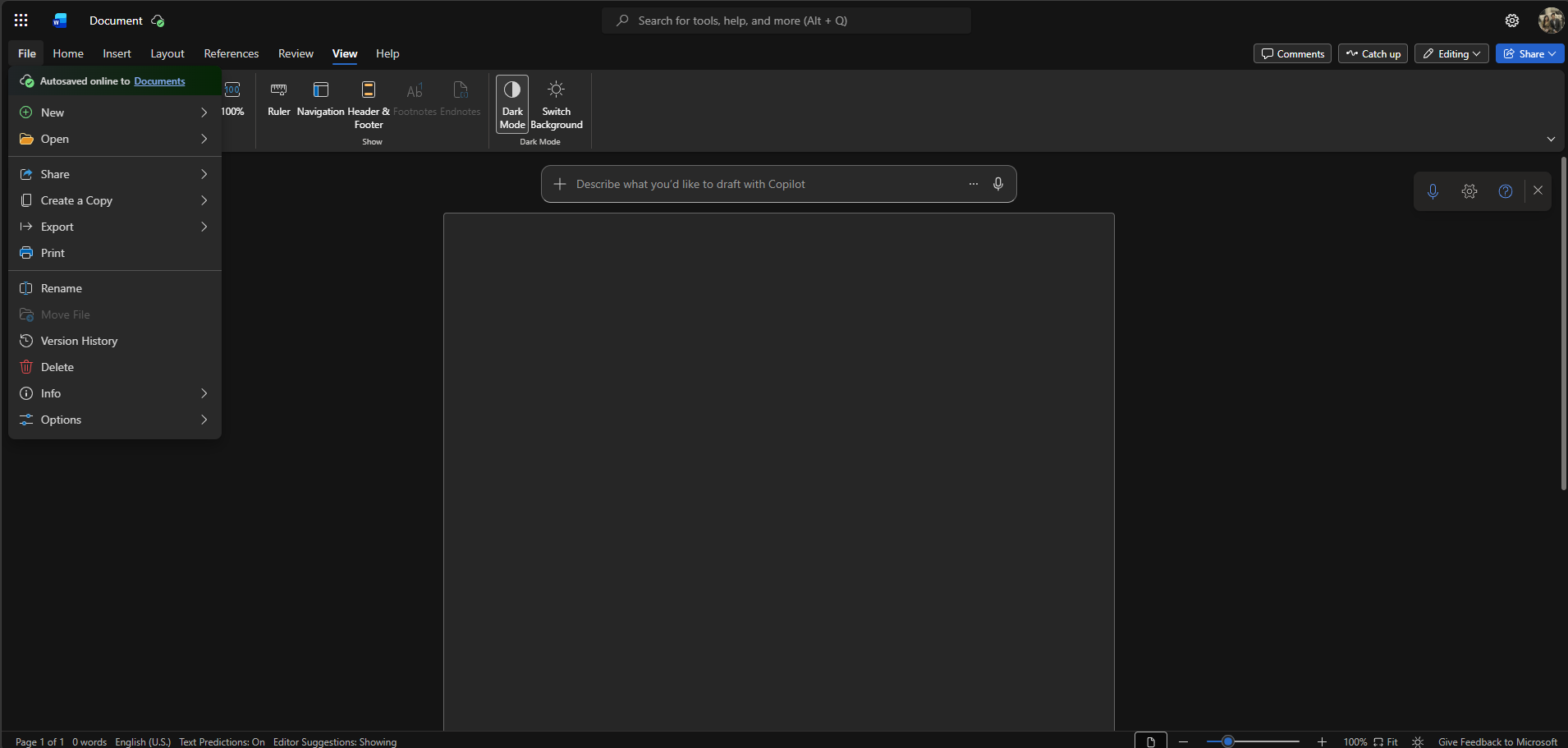
From here you can open files, create copies, print, view version history, and export to PDF.
- Create a PDF: In any Office app, go to File > Export > PDF. Or File > Save As and choose PDF as the format
- Edit a PDF: Open a PDF in Word - it converts the text to an editable document. It won't be pixel-perfect but the text is fully editable
- Sign a PDF: Use the built-in signature tools in Word or ask IT about Adobe options if you do this frequently
File Format Compatibility
- Word opens .doc and .docx files (and saves as .docx by default)
- Excel opens .xls, .xlsx, and .csv files
- PowerPoint opens .ppt and .pptx files
- Old file formats from Google (exported as .docx/.xlsx/.pptx) work seamlessly - no conversion needed
Using Templates
Instead of starting from a blank page, browse templates for professional documents:
- Click New in any Office app
- Browse templates or search (e.g., "invoice", "report", "schedule")
- Click a template to start with a pre-designed layout
Templates are especially useful for external-facing documents - they look polished without any design effort.
Tips
- Bookmark office.com for quick access to all your Office apps
- You don't need to install anything - the web versions cover most daily tasks
- If you need advanced features, use the desktop apps (already installed on your work computer)
- File format tip: Word uses .docx, Excel uses .xlsx, PowerPoint uses .pptx. Don't worry about converting - it's automatic
- Ctrl + S still works as a habit, even though auto-save is on - it just saves instantly
Quick Reference Downloads
- Word, Excel & PowerPoint Quick Reference Card
- Word Quick Start Guide
- PowerPoint Quick Start Guide
- Excel Learning Template
- PowerPoint Learning Template
- Word Learning Template
Need Help?
- Most things work very similarly to Google's apps - try the same steps you already know
- Contact your regional IT support team (the Contact page lists the right email for your office)