
What's Changing
Google Calendar becomes Outlook Calendar. Your calendar now lives inside Outlook (the same app as your email) and also inside Microsoft Teams. Same purpose, same concept - just a new home.
What Stays the Same
- Your appointments and meetings - they're all migrated over
- Meeting invites - send and receive them the same way
- Shared calendars - still viewable and shareable
- Reminders and notifications - still pop up before meetings
- Recurring events - they transfer as-is
Finding Your Calendar
In Outlook (Desktop or Web)
- Open Outlook
- Click the Calendar icon at the bottom of the left sidebar
- Your full calendar appears with all your events
Here's what the Outlook Calendar looks like on the web — a week view with your events colour-coded and a "People's calendars" panel on the right:
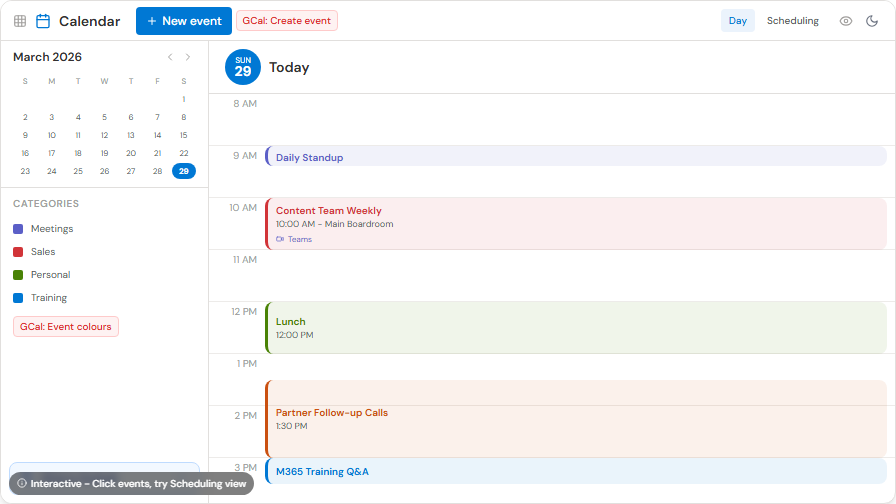
On the desktop, you can overlay multiple calendars to see everyone's schedule at once — each calendar is colour-coded so you can quickly spot conflicts and availability.
In Teams
- Open Microsoft Teams
- Click Calendar in the left sidebar
- You'll see today's meetings with a Join button when it's time
On Your Phone
- Open the Outlook app
- Tap the Calendar tab at the bottom
- Swipe left/right to change days
Google Calendar to Outlook Calendar - Quick Comparison
| Google Calendar | Outlook Calendar |
|---|---|
| Create event | New Event / New Meeting |
| Invite guests | Add Required/Optional Attendees |
| Find a time | Scheduling Assistant |
| View others' calendars | Open Shared Calendar |
| All-day event | All Day toggle |
| Event colours | Categories with colours |
Migration Heads-Up
- Your calendar events migrate over — all your appointments, meetings, and recurring events transfer to Outlook Calendar.
- Google Meet links in old events will stop working once you're using Outlook. Future recurring meetings will automatically get Microsoft Teams links instead. If you have a recurring meeting with an external partner, you may need to update the invite with a new Teams link.
- Google Calendar add-ons or integrations (like Calendly connected to Google Calendar) may need to be reconnected to Outlook Calendar. Check with IT if you use third-party scheduling tools.
Common Tasks
Scheduling a Meeting
- Click New Event (or New Meeting in Teams)
- Add a title, date, and time
- Add attendees by typing their names
- Use Scheduling Assistant to find a time when everyone is free
- Add a Teams meeting link if you want a video call option (click "Teams Meeting" toggle)
- Click Send
Viewing a Colleague's Calendar
- In Outlook Calendar, click Add Calendar > From Directory
- Search for your colleague's name
- Their calendar appears side by side with yours (busy/free times only, unless they've shared details)
Setting a Reminder
- When creating an event, set the Reminder dropdown to your preferred time (15 minutes, 30 minutes, 1 hour, etc.)
- Default reminders apply to all new events
Scheduling Assistant - Your Best Friend for Group Meetings
The Scheduling Assistant is one of the biggest upgrades over Google Calendar's "Find a time" feature:
- When creating a new meeting, click the Scheduling Assistant tab
- You'll see a timeline for each attendee showing their free/busy blocks
- Green = free, Blue/Purple = busy, Striped = tentative
- Drag the meeting block left or right to find a slot where everyone is available
- Outlook will also suggest times at the top where all attendees are free
This is especially useful for booking meetings with managers or staff across multiple departments - no more back-and-forth emails asking "when are you free?"
Required vs Optional Attendees
When adding people to a meeting:
- Required - they need to be there. If they decline, you'll see a notification
- Optional - they're welcome to attend but the meeting happens without them
This helps attendees prioritize. A team member who's "optional" on a cross-department meeting knows they can skip it if a deadline needs them.
Recurring Meetings
For weekly team meetings or monthly reviews:
- Create a new meeting as usual
- Click the Recurrence or Repeat option
- Choose Weekly, Monthly, or a custom pattern
- Set an end date or "No end date"
To change just one occurrence (e.g., "this week's meeting is moved to Thursday"): open the event, and choose "Edit this event" instead of "Edit series."
Room Booking
Blue Ant Media has over 20 bookable meeting rooms across multiple offices. When you create a meeting:
- Click "Add a room" or start typing the room name in the Location field
- Rooms show up like people in the Scheduling Assistant — you can see if they're free or booked
- Once you add the room, it's reserved automatically when you send the invite
Blue Ant Office Locations with Bookable Rooms
- Toronto HQ — main office, multiple boardrooms and meeting spaces
- 30 Jefferson — meeting rooms available
- 74 Fraser — meeting rooms available
- 595 Adelaide — meeting rooms available
- Winnipeg — bookable rooms for the Winnipeg team
- Washington, DC — US office meeting spaces
- London, UK — UK office meeting spaces
All rooms are migrating from Google Calendar resources to Outlook — the names will be the same. If you can't find a room after migration, contact IT.
Calendar Sharing
Let a colleague see your schedule without giving them edit access:
- Right-click My Calendar in the left sidebar
- Select Sharing and Permissions
- Add the person and choose what they can see (free/busy only, titles, or full details)
This is useful for sales managers who need to see their team's availability, or assistants who coordinate schedules.
RSVP Etiquette
When you get a meeting invite, always respond:
- Accept - you'll be there
- Tentative - you might be there (shows as striped on your calendar)
- Decline - you can't make it (optionally add a reason)
Responding helps the organizer plan. An unanswered invite shows as "None" on their tracking, which creates uncertainty.
Tips
- Every Teams meeting automatically gets a calendar event - no need to create separate entries
- Use Scheduling Assistant when booking meetings with multiple people - it shows everyone's availability at a glance
- Colour-code your events using Categories (right-click an event > Categorize) to tell apart customer meetings, internal meetings, and personal time
- The Outlook app on your phone shows your calendar and email in one place - super convenient for checking your schedule on the go
- Your Outlook Calendar and Teams Calendar are the same - book in one and it appears in both
Quick Reference Downloads
- Outlook Calendar Cheat Sheet - Windows
- Outlook Calendar Cheat Sheet - Mac
- Outlook Calendar Cheat Sheet - Online
Need Help?
- Most calendar features work just like Google Calendar - try the same steps
- Contact your regional IT support team (the Contact page lists the right email for your office)