
What's Changing
Blue Ant Media's Google Shared Drives are becoming SharePoint sites. This is where your team's shared documents, templates, and resources live.
Think of it this way:
- OneDrive = your personal locker (just for you)
- SharePoint = the shared filing cabinet (for your team)
What Stays the Same
- Team files are still shared - everyone on your team can still access the same documents
- Permissions - only people with access can see shared files
- Real-time collaboration - multiple people can edit a document at the same time
- Version history - you can always see who changed what and go back to older versions
Migration Heads-Up
- Shared Drive folder structures are preserved — your folders and files transfer over in the same hierarchy. However, Google-native files (Docs, Sheets, Slides) are converted to Office format automatically. Most convert cleanly, but review important documents after migration (see the OneDrive module for details).
- Permissions are being mapped — your existing Shared Drive permissions are translated to SharePoint permissions. In most cases, if you had access before, you'll have access after. If something seems wrong, contact IT.
- How to check who has access to a file or folder after migration: open the file in SharePoint, click the three dots (…) > Manage access. You'll see a list of everyone with view or edit rights. If you see someone who shouldn't have access — or a colleague who's missing — let IT know and they'll adjust.
How SharePoint is Organized
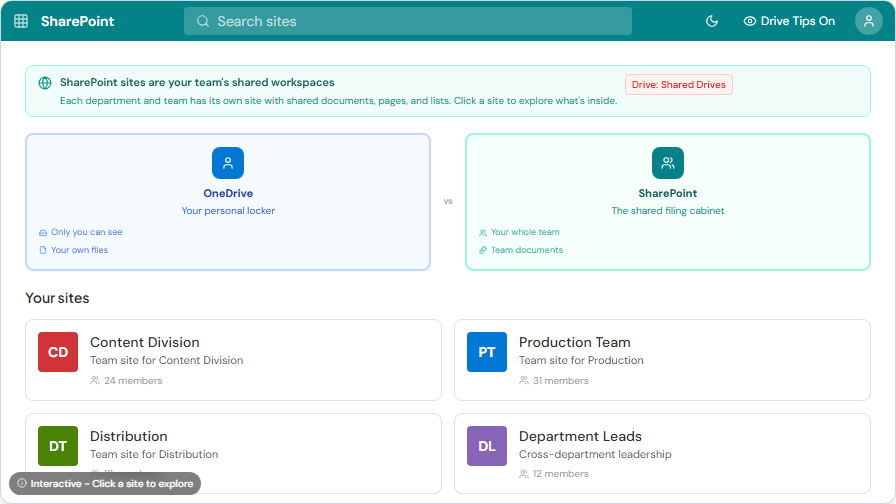
Here's what the SharePoint start page looks like — you'll see sites you follow, recently visited sites, and frequently accessed team sites:
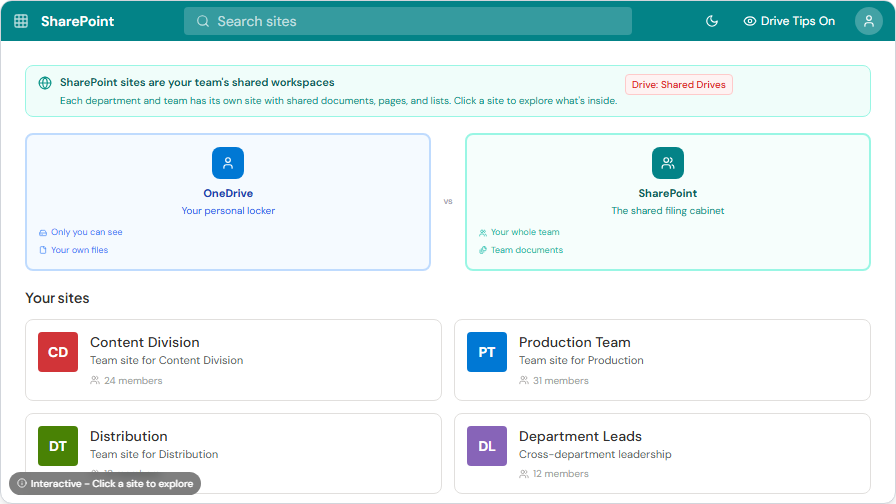
Blue Ant Media is organized into divisions, and each department gets its own SharePoint site. Here's what a typical SharePoint site home page looks like — with News on the left and document folders on the right:
Note for reviewers: Division names and the SharePoint site naming convention shown in examples below are placeholders pending confirmation from IT/leadership. Final structure will be confirmed before launch.
Inside each site, you'll find:
- Documents - the shared file library (this is where your Shared Drive files went)
- Pages - information pages for your team (like an internal website)
- Lists - for tracking things like tasks or inventory
Finding Your Team's Files
From Your Browser
- Go to your SharePoint site (your manager or IT contact will share the link)
- Click Documents to see the shared file library
- Browse folders just like you did in Shared Drives
From Teams
- Open Microsoft Teams
- Go to your team's channel
- Click the Files tab at the top
- These files are stored in SharePoint behind the scenes
From OneDrive
- Open OneDrive
- Look in the left sidebar for Shared Libraries
- Your team's SharePoint document libraries appear here
Google Shared Drives to SharePoint - Quick Comparison
| Google Shared Drives | SharePoint |
|---|---|
| Shared Drive | SharePoint Site |
| Folders in Shared Drive | Document Library folders |
| Shared with specific people | Site members and permissions |
| File activity | Version History |
Working with Shared Files
Opening a Shared Document
- Click the file to open it in your browser
- Or click the three dots and select Open in Desktop App for the full desktop experience
Uploading Files
- Navigate to the right folder
- Click Upload or just drag and drop files from your computer
Here's what the document library toolbar looks like — notice the Upload, Sync, and other action buttons across the top:
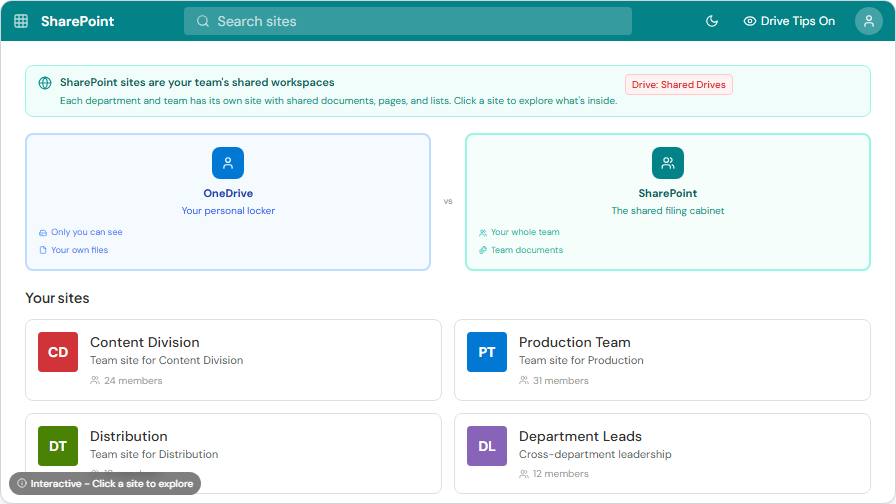
The toolbar gives you quick access to:
- Upload — add files from your computer
- Sync — sync this library to your File Explorer for offline access
- Edit in grid view — edit metadata for multiple files at once (like a spreadsheet)
- Export to Excel — download a list of all files and their details
- Pin to Quick access — add this library to your OneDrive sidebar
Sharing a SharePoint File with Someone Outside Your Team
- Right-click the file and select Share
- Enter their email address
- Set whether they can Edit or View
- Click Send
SharePoint in Practice
Here's what Blue Ant Media SharePoint sites look like in practice — your department's Shared Drive content now lives here:
- Studios — production schedules, show briefs, delivery checklists, licensing paperwork
- Love Nature — content acquisition templates, programming guides, asset libraries
- FAST — channel schedules, distribution templates, partner materials
- HR & Policies — employee handbook, safety procedures, company policies
- Marketing — press kits, event materials, brand assets
- Finance — budget templates, monthly reports, AP/AR tracking
The benefit of keeping these in SharePoint: everyone uses the latest version. When the production schedule gets updated, the whole team gets the new one immediately. No more emailing files back and forth.
Who Manages the SharePoint Site
Site owners (usually your manager or IT) control the structure and permissions:
- They decide which folders and document libraries exist
- They control who has access and what level of access (view only, edit, full control)
- They can add new pages, lists, and resources
Site owners can create many types of content using the + New or Create menu — news posts, pages, document libraries, lists, links, and OneNote notebooks. As a regular team member, you'll mostly work with documents — but it's good to know the full range of what your SharePoint site can hold.
If you need something changed - a new folder, a new document library, or access for a colleague - ask your manager or contact IT. Regular team members can upload and edit files but can't restructure the site.
Sync SharePoint to Your Computer
You can access SharePoint files directly from File Explorer without opening a browser:
- Open your SharePoint document library in the browser
- Click the Sync button in the toolbar
- OneDrive will add the library to your File Explorer
- The files now appear alongside your personal OneDrive files, clearly labeled with the team/site name
This is especially useful if you work with shared files daily - no need to open a browser every time.
Document Templates
Store commonly used forms and templates in SharePoint so the whole team always uses the current version:
- Production schedule templates
- Content delivery checklists
- Show brief templates
- Meeting agenda templates
When someone needs one, they grab it from SharePoint rather than using a personal copy that might be outdated.
File Retention and Recovery
Files in SharePoint are protected:
- Accidentally deleted a file? Check the SharePoint Recycle Bin - files stay there for 93 days
- Need an older version? Right-click > Version history to see and restore previous versions
- Someone left the company? SharePoint files stay exactly where they are - they belong to the team, not the individual
- Backup: SharePoint is backed up and retained per company policy. Your files are safe
SharePoint and Teams — They're Connected
If you've read the Teams Channels module, you already know that the Files tab in any Teams channel is actually a SharePoint document library. They're the same files, viewed in two different ways:
- In Teams, the Files tab shows a simplified view designed for quick access
- In SharePoint, you get the full experience with advanced features like views, alerts, and detailed permissions
- Click Open in SharePoint from the Teams Files tab to switch to the full view
- Changes made in one place appear instantly in the other — they're the same files
Tips
- Bookmark your department's SharePoint site for quick access
- Don't move files out of SharePoint into OneDrive - shared files should stay shared. If you need a personal copy, download it
- Use the Sync button to access SharePoint files directly from your computer's File Explorer
- Edit in the browser for quick changes, or click "Open in Desktop App" for full Word/Excel features
- Your manager will let you know which SharePoint site your team uses
Quick Reference Downloads
- SharePoint Basics Quick Reference Card
- SharePoint Quick Start Guide
- File Sharing & Collaboration Guide
Need Help?
- Ask your manager which SharePoint site your team uses
- Contact your regional IT support team (the Contact page lists the right email for your office)